How to Accept Invite and Setup Libraries
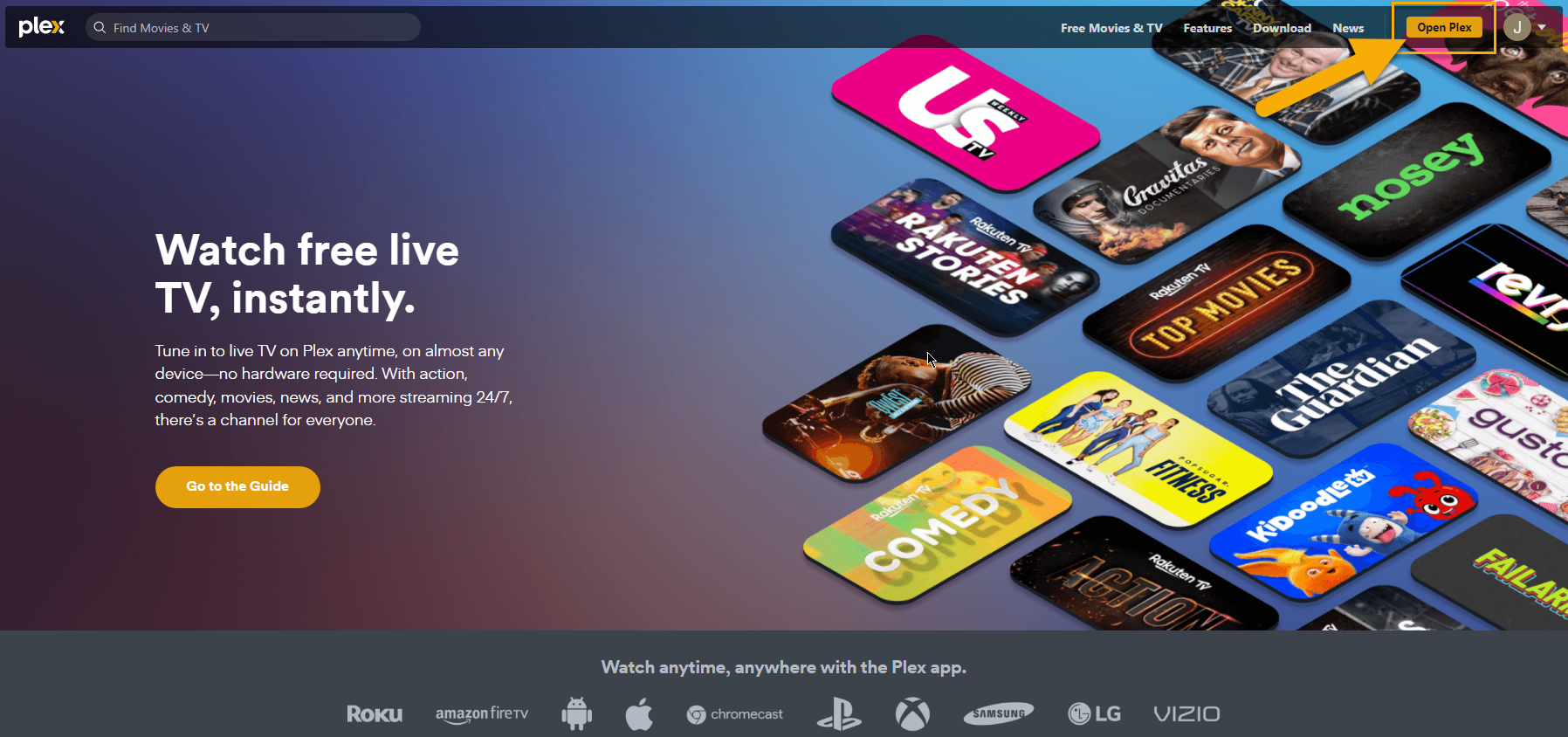
- Go to https://plex.tv and login with your Plex account credentials
- Access the Plex Web app by clicking on the Open Plex button
Decide if you want to Sync your Watched Status if you have access to Multiple Servers

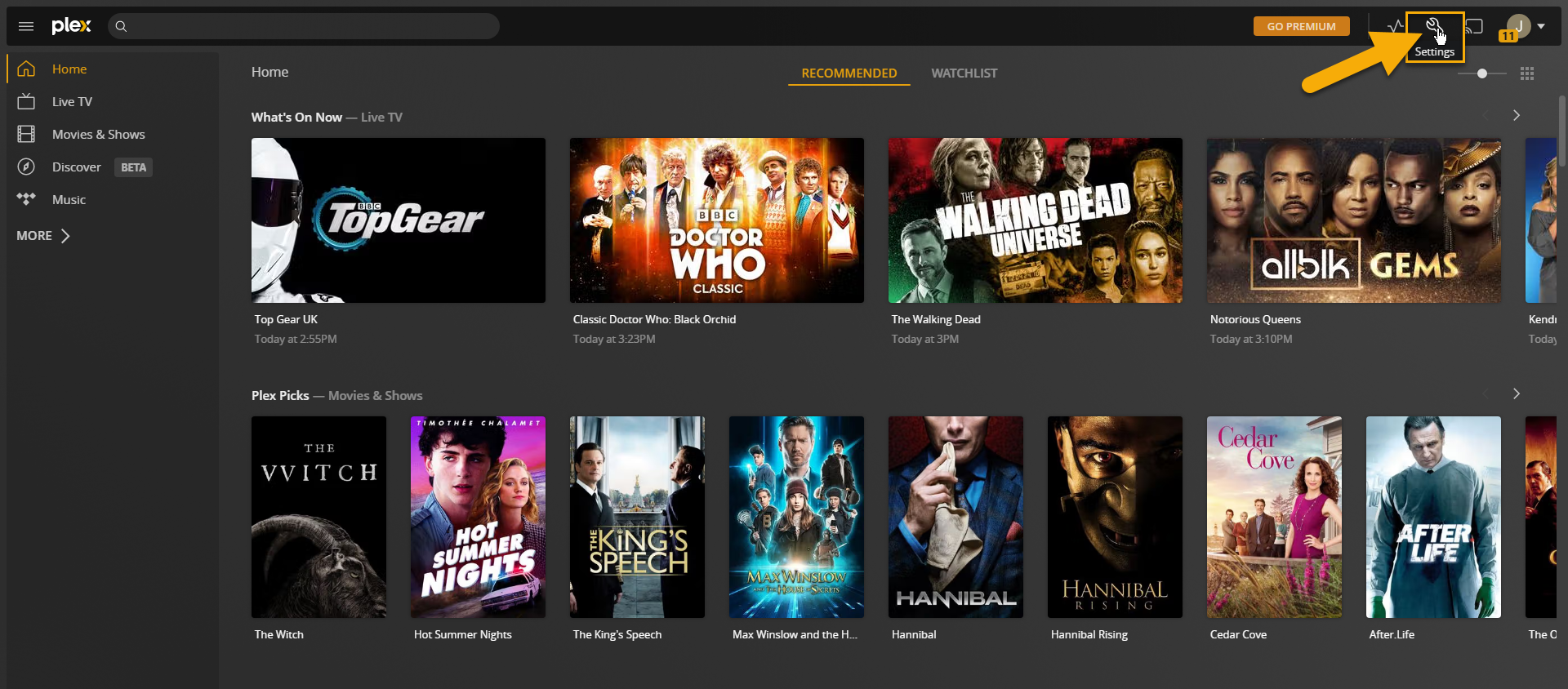
Open Settings by clicking on the wrench icon in the top right
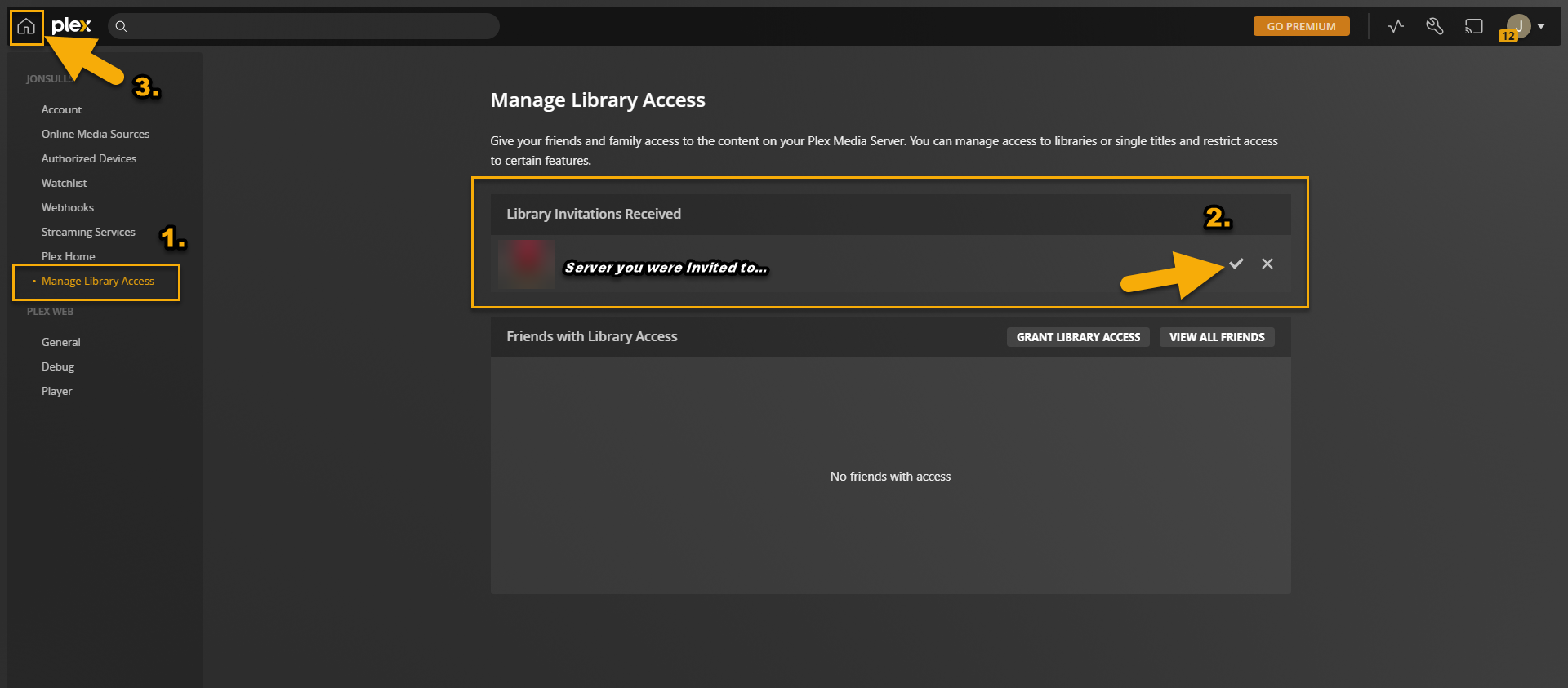
- Select Manage Library Access
- Find the Invitation received section and click the Checkmark after verifying the server is in fact the one you were expecting to see an invitation from
- Click the Home Icon to go to the Home Screen of Plex
- Plex has their own libraries and content, while it's a nice bonus it is easy to confuse a Plex Library with a custom curated one that has been shared to you
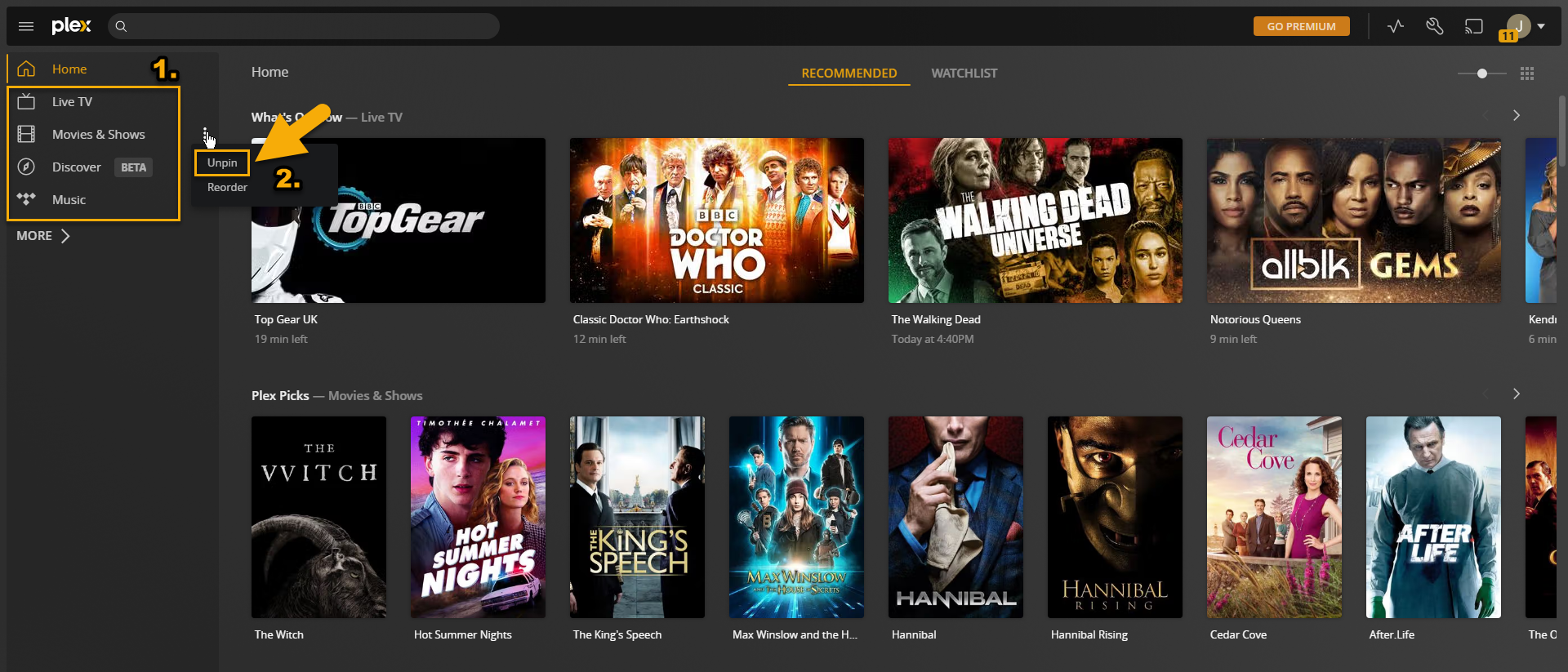
- Find the hidden Ellipse next to the item you wish to Unpin. (I remove all Plex's items seen in the screenshot)
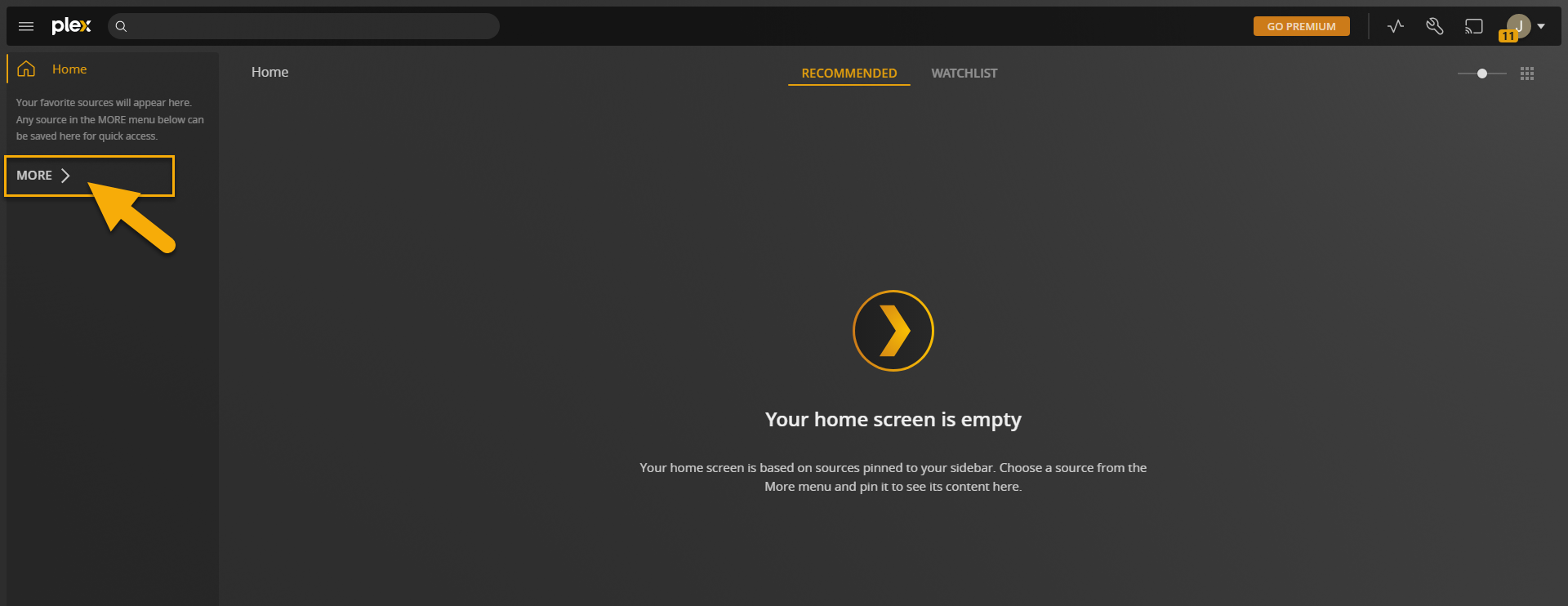
Click on the MORE button to find the server that was shared with you
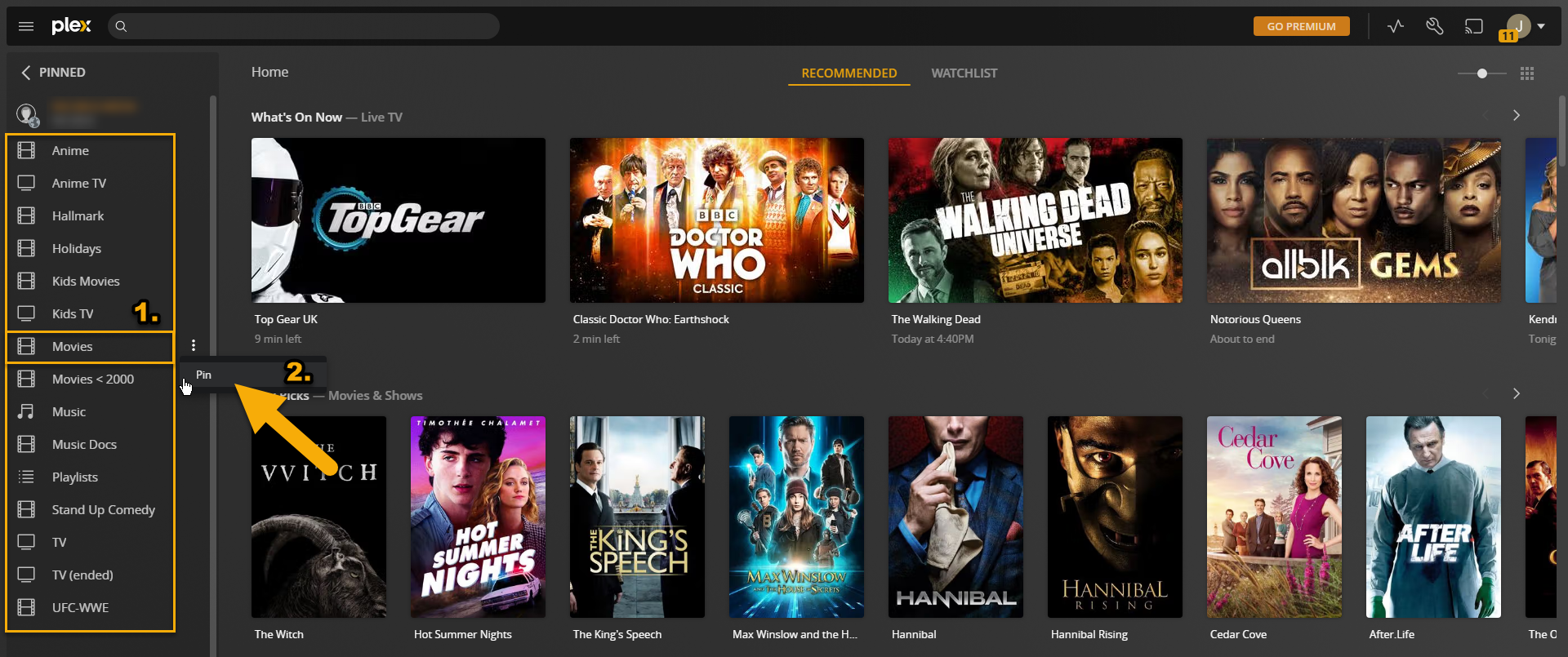
Please note that the server name can be different depending on which server you were added
- Locate a desired library of interest that is shared with you
- Click the Ellipse and Pin the desired library (Repeat this for all libraries of interest)
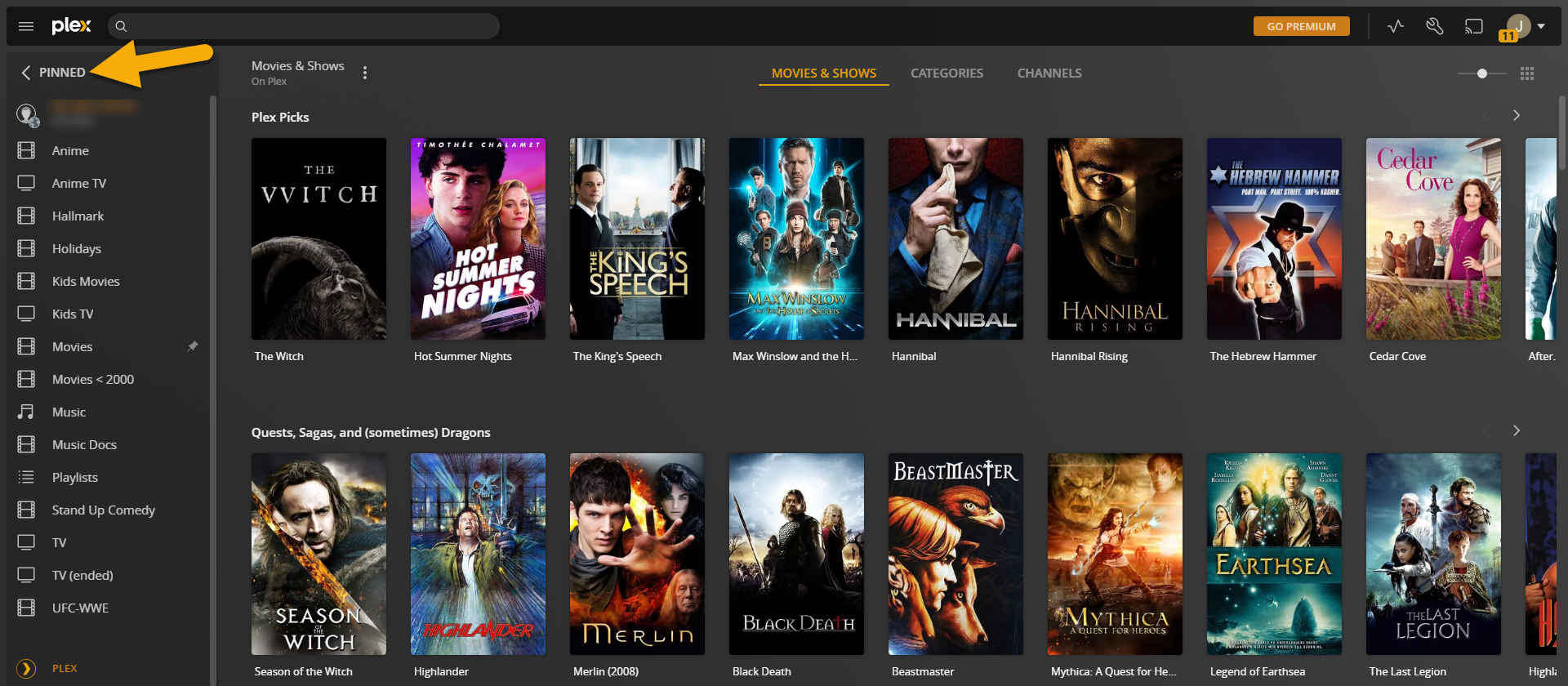
In the upper left, click the PINNED menu item to return to the Home section of Plex
You should see your pinned libraries listed on the home page, you can also reorder them as you see fit.
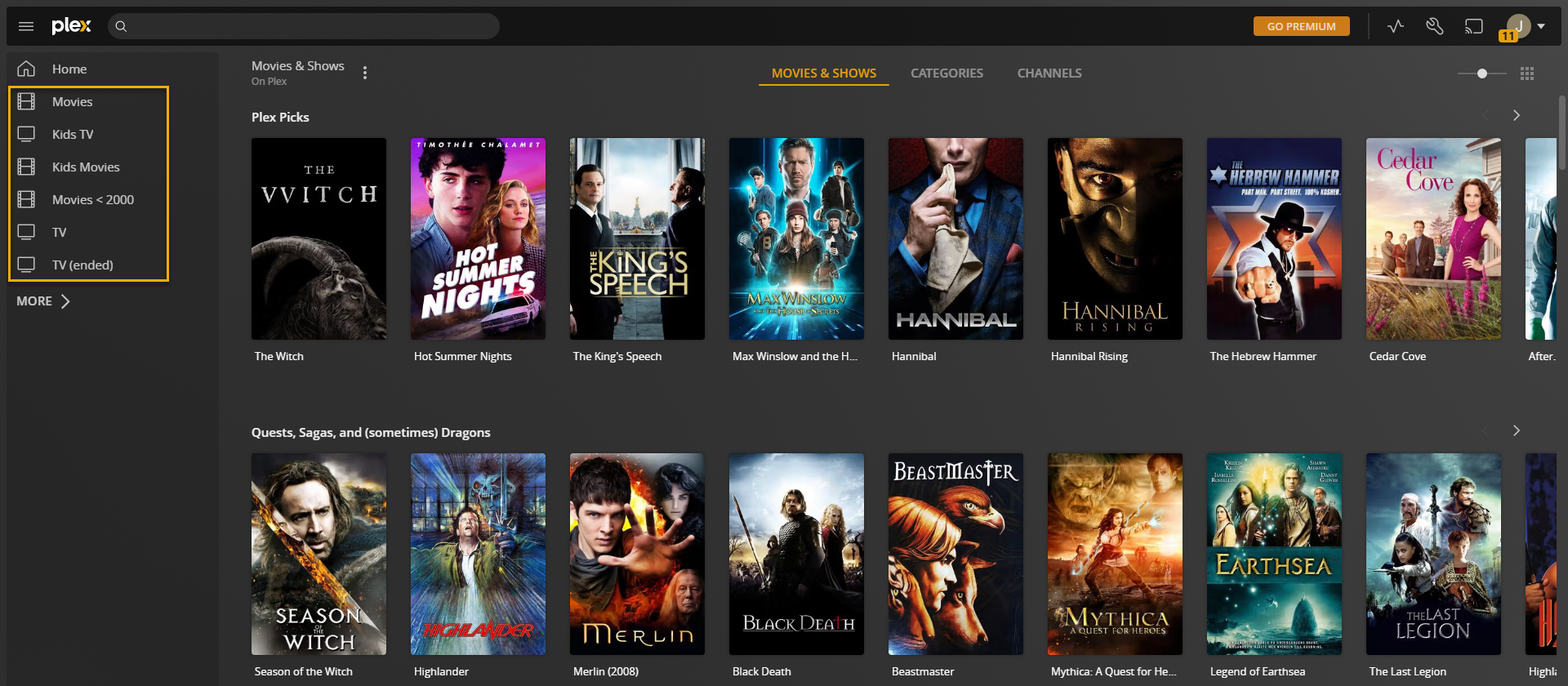
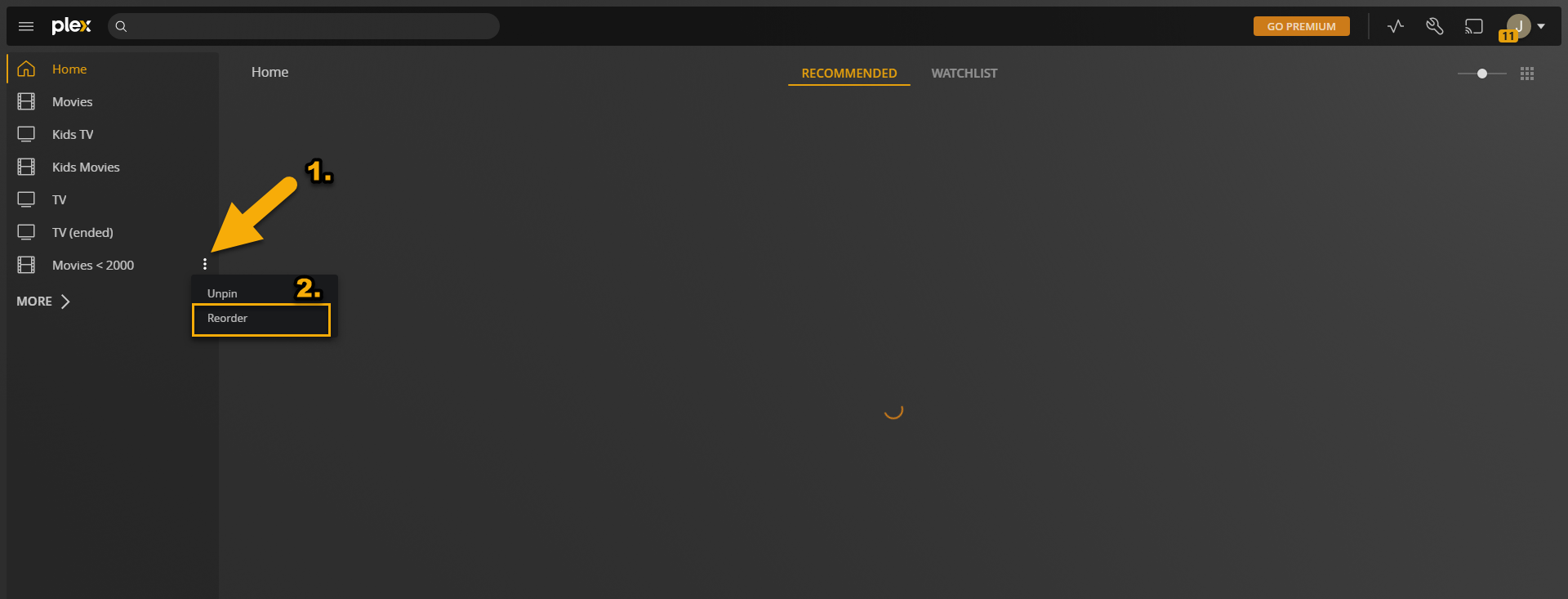
- Locate a desired library you wish to move
- Click the Ellipse and select Reorder
Now simply Drag and Drop the Libraries as you see fit.
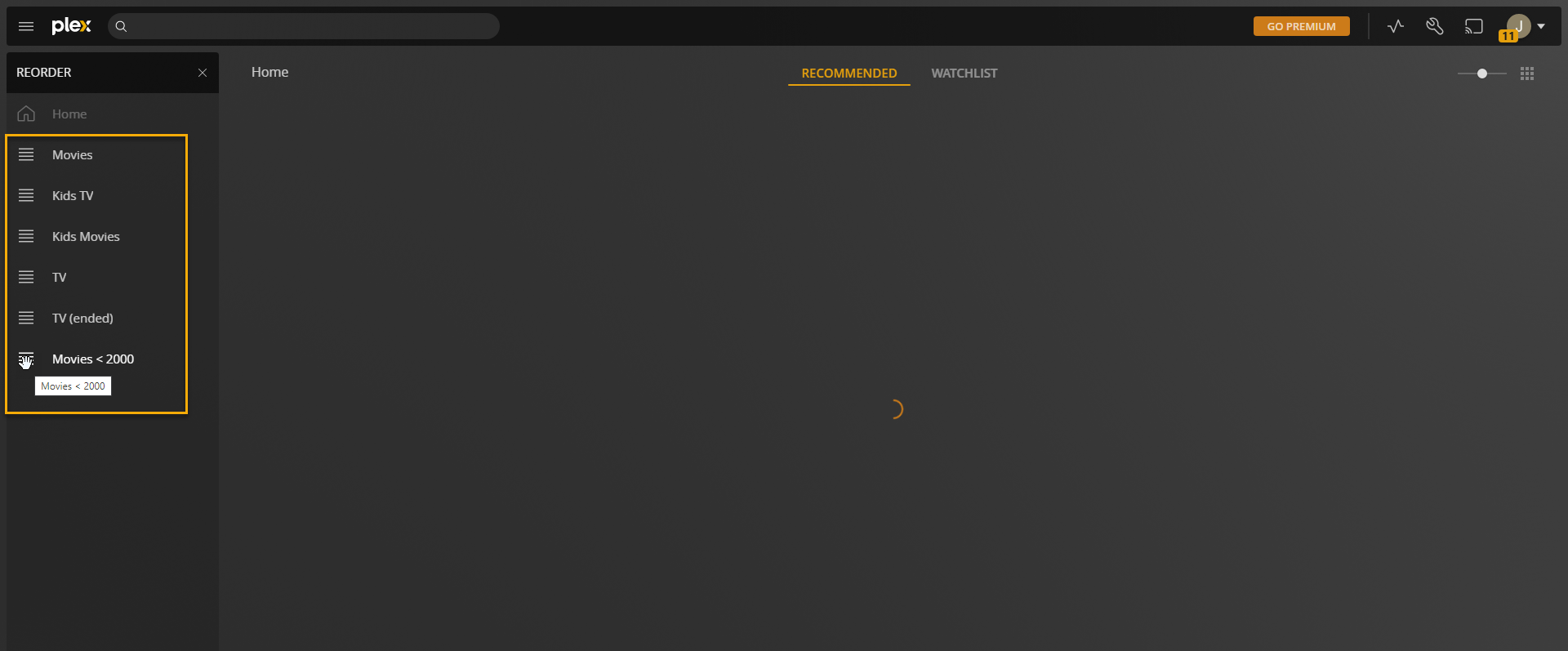
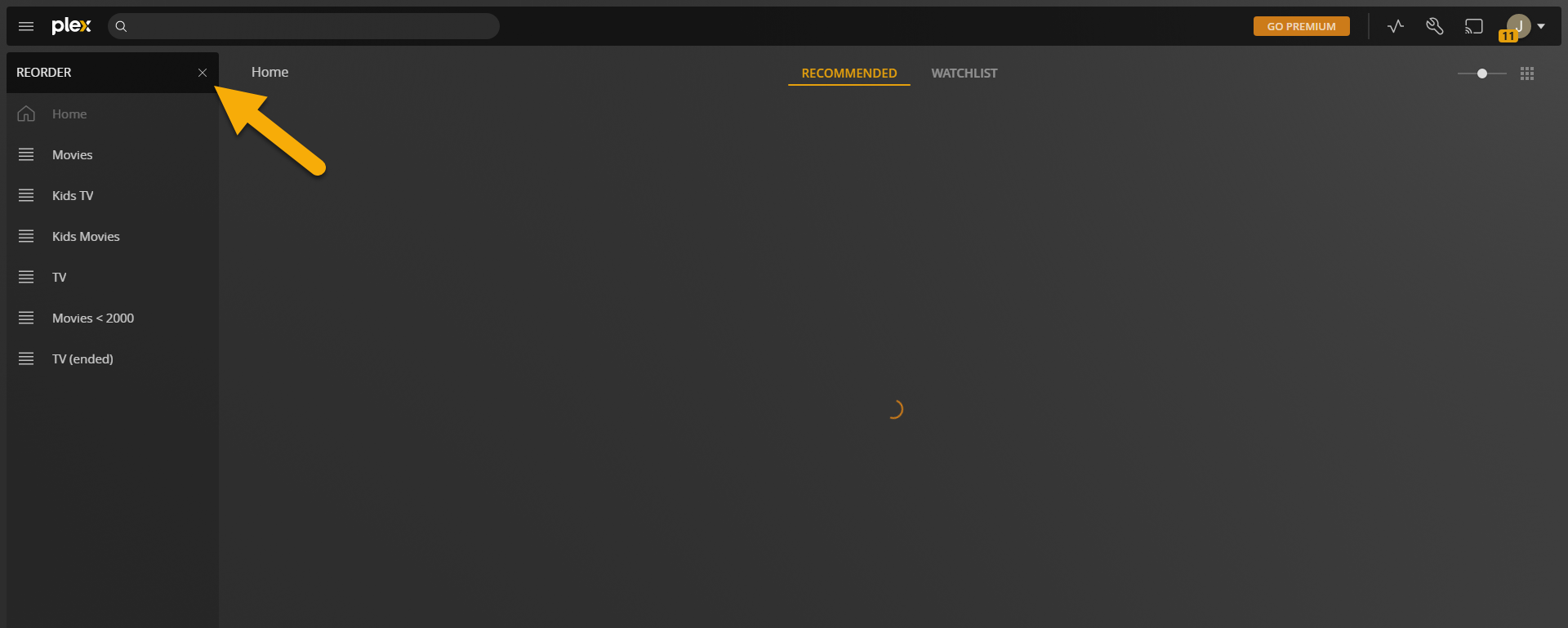
Once all your Libraries are in the desired order, simply click the tiny “x” found here to exit the Reorder Process. You are now ready to enjoy your streaming.